> ## Documentation Index
> Fetch the complete documentation index at: https://koreai-apis.mintlify.site/llms.txt
> Use this file to discover all available pages before exploring further.
# Configuring the BambooHR Action
[Back to Actions Integrations](/ai-for-service/integrations/overview#actions)
Connect the Platform to BambooHR to create, view, and update employees, manage time off requests, and update request statuses. See [BambooHR documentation](https://documentation.bamboohr.com/docs) for details.
***
## Supported Authorization Types
The platform supports Basic Auth for BambooHR integration. See [App Authorization Overview](/ai-for-service/app-settings#authorization-profiles) for details.
| Authorization Type | Supported |
| ---------------------------------------- | --------- |
| Pre-Authorize the Integration | Yes |
| Allow Users to Authorize the Integration | Yes |
***
## Prerequisites
Before enabling the BambooHR action:
* Create a [BambooHR](https://documentation.bamboohr.com/docs) developer account.
* Copy the **user sub domain** and **API key** values.
***
## Step 1: Enable the BambooHR Action
Go to **App Settings > Integrations > Actions** and select **BambooHR**.
### Pre-authorize the Integration (Basic Auth)
1. Select **BambooHR** in the **Available Actions** region.
2. In the **Configurations** dialog, select the **Authorization** tab.
3. Set **Authorization Type** to **Pre-authorize the Integration** > **Basic Auth**.
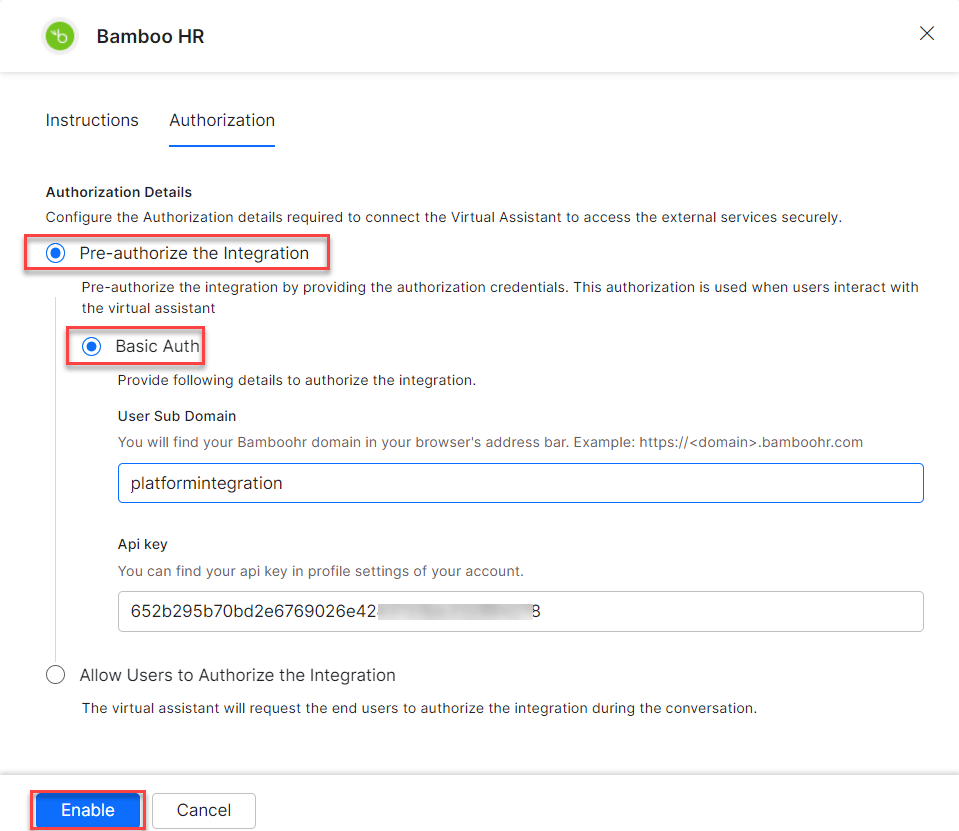 4. Enter your **API Key**.
5. Click **Enable**. The Integration Successful pop-up appears on first configuration.
4. Enter your **API Key**.
5. Click **Enable**. The Integration Successful pop-up appears on first configuration.
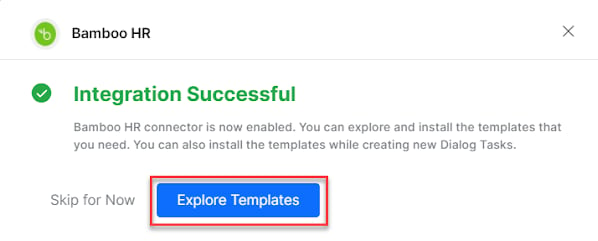 The BambooHR action moves from Available to Configured.
### Allow End Users to Authorize (Basic Auth)
1. Select **BambooHR** in the **Available Actions** region.
2. In the **Configurations** dialog, select the **Authorization** tab.
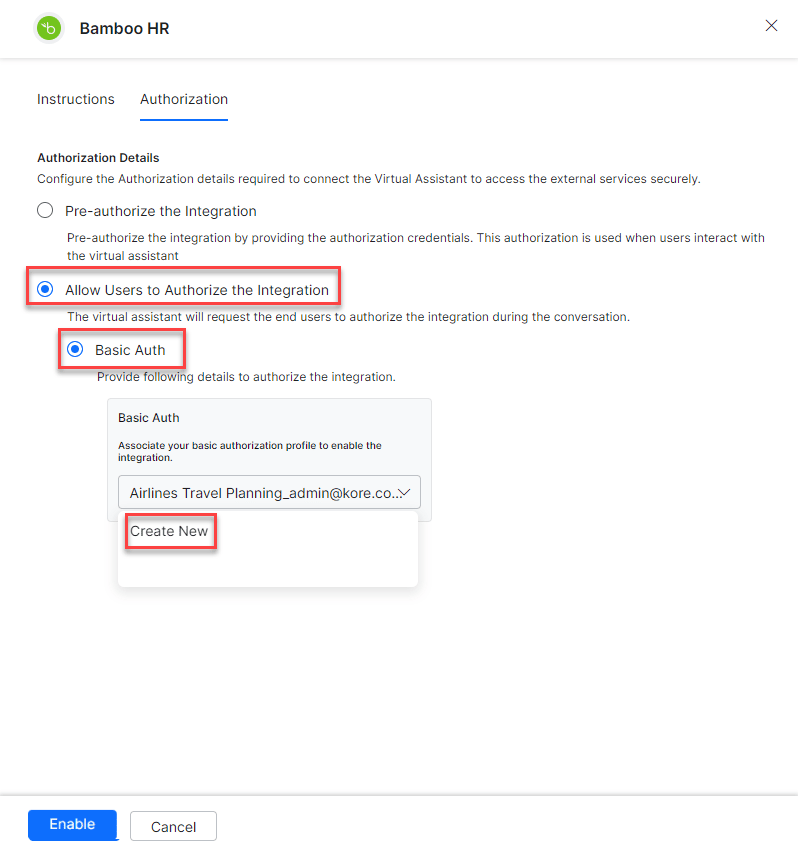
3. Set **Authorization Type** to **Allow Users to Authorize the Integration** > **Basic Auth**.
4. Click **Select Authorization** > **Create New**.
The BambooHR action moves from Available to Configured.
### Allow End Users to Authorize (Basic Auth)
1. Select **BambooHR** in the **Available Actions** region.
2. In the **Configurations** dialog, select the **Authorization** tab.
3. Set **Authorization Type** to **Allow Users to Authorize the Integration** > **Basic Auth**.
4. Click **Select Authorization** > **Create New**.
 5. Select the authorization mechanism (for example, **Basic Auth**).
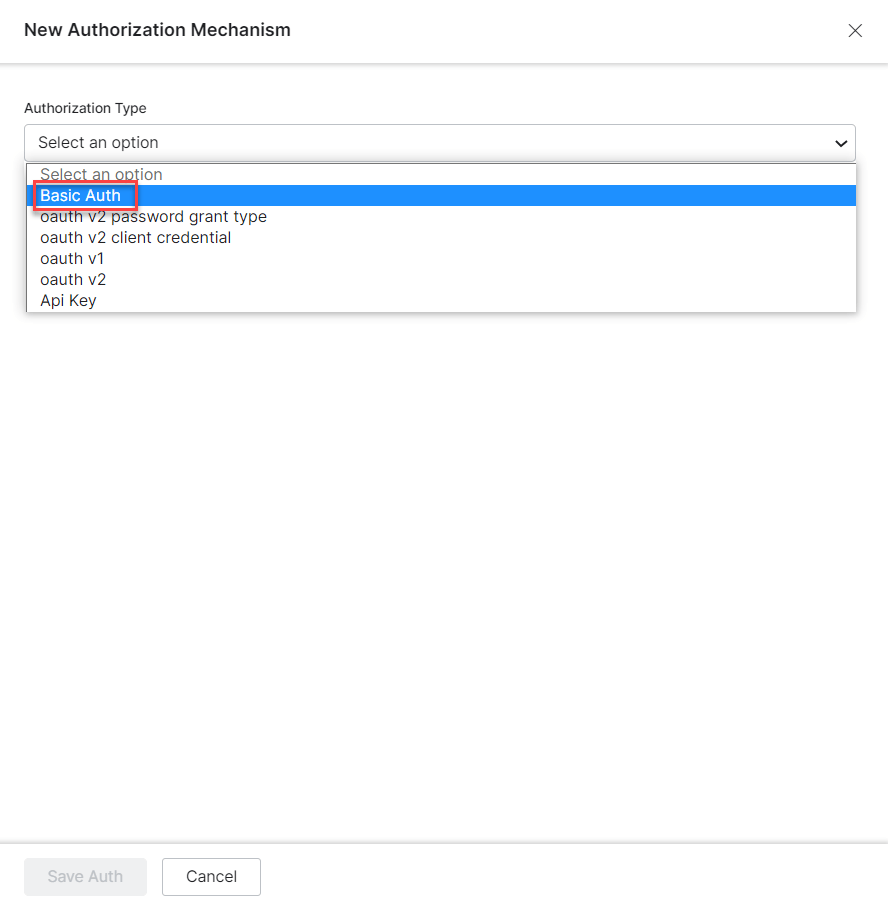 See [App Authorization Overview](/ai-for-service/app-settings#authorization-profiles) for creating Basic Auth profiles.
6. Enter the following credentials:
| Field | Description |
| ----------------------- | ----------------------------------------- |
| Name | Name for the Basic Auth profile |
| Tenancy URLs | Select Yes if tasks require tenancy URLs |
| Base URL | Base tenant URL for the BambooHR instance |
| Authorization Check URL | Auth check URL |
| Description | Description of the auth profile |
See [App Authorization Overview](/ai-for-service/app-settings#authorization-profiles) for creating Basic Auth profiles.
6. Enter the following credentials:
| Field | Description |
| ----------------------- | ----------------------------------------- |
| Name | Name for the Basic Auth profile |
| Tenancy URLs | Select Yes if tasks require tenancy URLs |
| Base URL | Base tenant URL for the BambooHR instance |
| Authorization Check URL | Auth check URL |
| Description | Description of the auth profile |
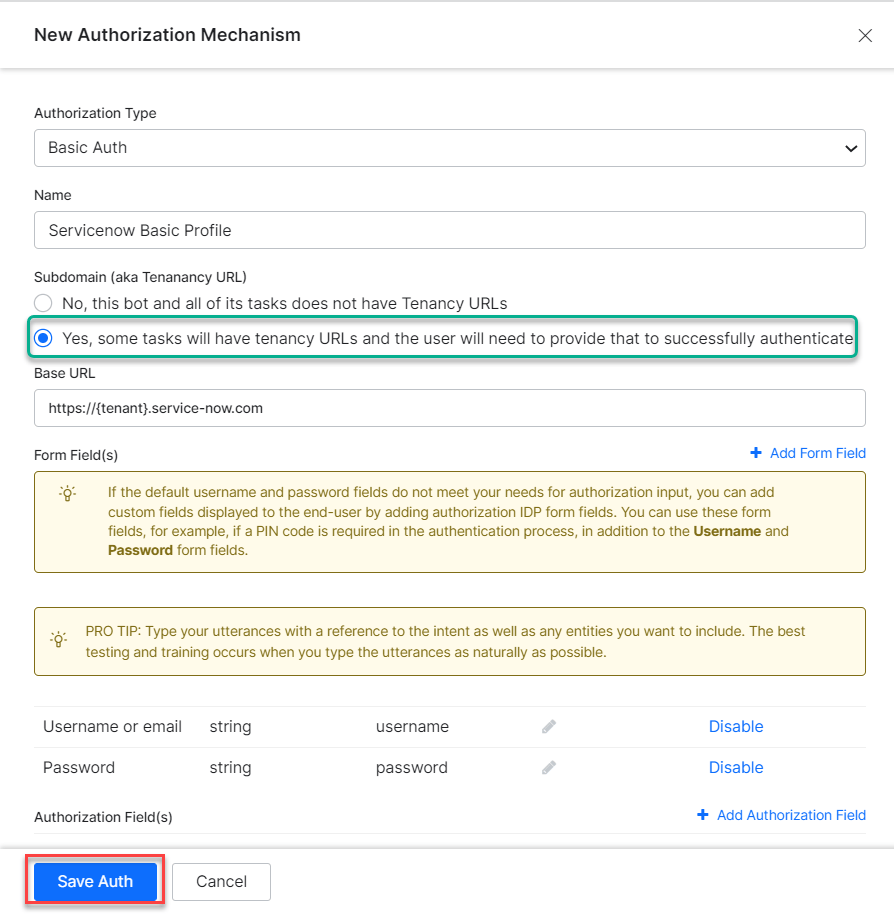 7. Click **Save Auth**, then select the new profile.
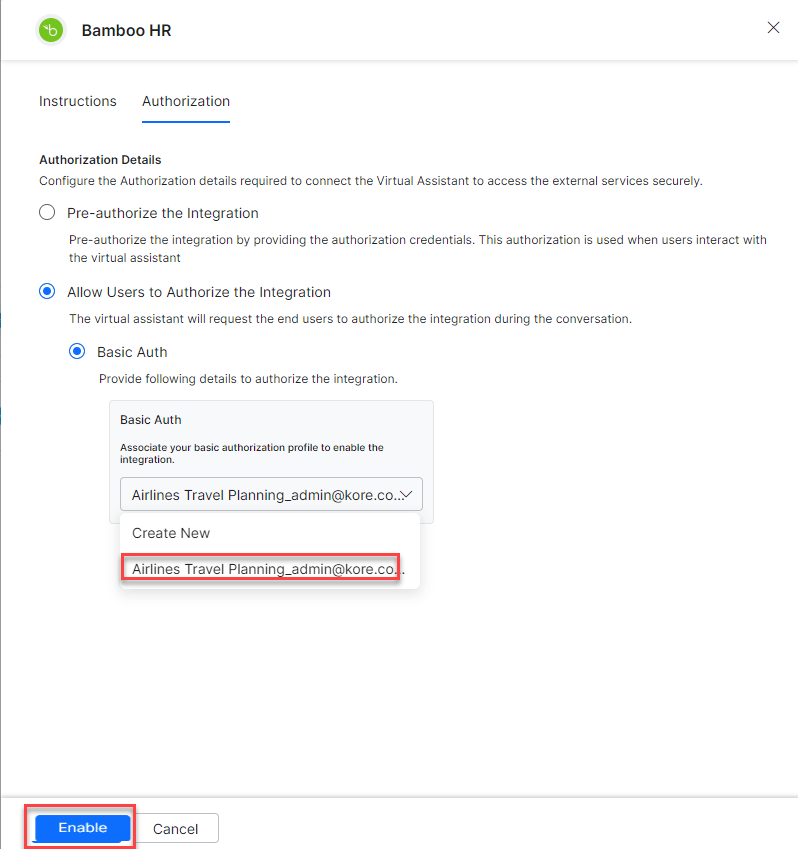 8. Click **Enable**. The Integration Successful pop-up appears.
***
## Step 2: Install BambooHR Action Templates
1. On the Integration Successful dialog, click **Explore Templates**.
8. Click **Enable**. The Integration Successful pop-up appears.
***
## Step 2: Install BambooHR Action Templates
1. On the Integration Successful dialog, click **Explore Templates**.
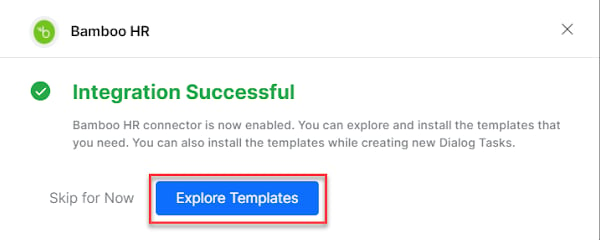 2. Click **Install** for the desired template.
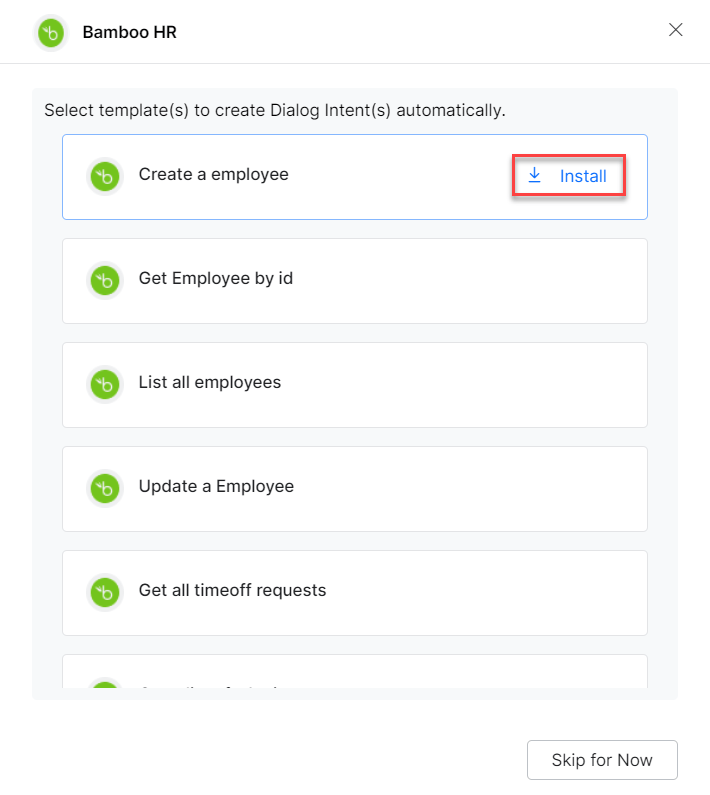 3. The associated dialog task is auto-created. Click **Go to Dialog** or navigate to **Automation AI > Use Cases > Dialogs**.
4. To use the templates, see [Using BambooHR Action Templates](/ai-for-service/integrations/actions/using-the-bamboohr-templates).
3. The associated dialog task is auto-created. Click **Go to Dialog** or navigate to **Automation AI > Use Cases > Dialogs**.
4. To use the templates, see [Using BambooHR Action Templates](/ai-for-service/integrations/actions/using-the-bamboohr-templates).